In this short guide, I will share my experience and installation steps for Apache Guacamole which will give you an access to your homelab machines over web browser.
STEP1: VIRTUAL MACHINE DEPLOYMENT FOR DOCKER
As a first step to deploy Guacamole, you would need install a Linux machine which would take care of deploying docker containers. I don’t recommended to use a LXC container if you have a Proxmox, since in my testing it created multiple issues with deployment. I’ve used a small footprint Ubuntu Server 24.04 LTS without any additional packages installed at the startup.
EXAMPLE DEPLOYMENT OF UBUNTU IN PROXMOX
https://www.snel.com/support/ubuntu-vm-in-proxmox-and-networking-setup/
or check-out Techno Tim guide
PLEASE NOTE: During setup, please configure a static IP for the server ex. 192.168.80.10 255.255.255.0 GW 192.168.80.1
STEP2: DOCKER INSTALLATION
Once deployed, please SSH into Ubuntu Server and deploy the Docker via official script from https://github.com/docker/docker-install . Use the following script to install docker using your root account:
curl -fsSL https://get.docker.com -o get-docker.sh
sh get-docker.sh
Following commands should install the docker just fine without any tinkering. If you need more information in regards to installation you may check https://www.digitalocean.com/community/tutorials/how-to-install-and-use-docker-on-ubuntu-22-04
or you may follow Bret Fisher Agentic DevOps
STEP3: DEPLOY GUACAMOLE ON YOUR UBUNTU SERVER
Deploy Guacamole via official repository: https://hub.docker.com/r/guacamole/guacamole
Create a folder on your machine to store the docker compose file
root@ubuntu:~# mkdir guacamole
root@ubuntu:~# cd guacamole
Prepare SQL initialisation script
root@ubuntu:~/guacamole# docker run --rm guacamole/guacamole:latest /opt/guacamole/bin/initdb.sh --mysql > initdb.sql
This task will download the Guacamole image to your Raspberry PI storage and then will give you back the prompt. After this, you will find an initdb.sql file in your folder:
root@ubuntu:~/guacamole# ls initdb.sql
Create a docker-compose.yml file
Fill the file with the following content. You should also change the MYSQL user, password (both in the “db” and “service” sections), and root password according to your preferences:
root@ubuntu:~/guacamole# nano docker-compose.yml
services:
  db:
    image: mariadb:latest
    restart: always
    environment:
      MYSQL_ROOT_PASSWORD: 'MySQLPasswordChangeMe'
      MYSQL_DATABASE: 'guacamole_db'
      MYSQL_USER: 'guacamole_user'
      MYSQL_PASSWORD: 'MySQLPasswordChangeMe'
    volumes:
      - './db-data:/var/lib/mysql'
      - './initdb.sql:/docker-entrypoint-initdb.d/initdb.sql'
  guacd:
    image: guacamole/guacd:latest
    restart: always
  guacamole:
    image: guacamole/guacamole:latest
    restart: always
    ports:
      - 8080:8080
    environment:
      GUACD_HOSTNAME: "guacd"
      MYSQL_HOSTNAME: "db"
      MYSQL_DATABASE: "guacamole_db"
      MYSQL_USER: "guacamole_user"
      MYSQL_PASSWORD: "MySQLPasswordChangeMe"
      TOTP_ENABLED: "false"   ### TRUE IF YOU WANT 2FA TOTP QR CODE
      WEBAPP_CONTEXT: "ROOT"  ### IF YOU WANT TO GET RID OF GUACAMOLE SUBURL
    depends_on:
      - db
      - guacd
volumes:
  db-data:
Save and close the file. The guacamole folder should now contain the following files:
root@ubuntu:~/guacamole# ls
After this, from the guacamole folder, you can install Guacamole on Raspberry PI with the following command:
root@ubuntu:~/guacamole# docker compose up -d
Again, this command will start downloading the required Docker images. After this, Docker will create the services and give you back the prompt. You can check the created containers with the following command:
root@ubuntu:~/guacamole# docker ps -a
Before looking for the web interface, please check the database logs with the following command:
root@ubuntu:~/guacamole# docker logs guacamole-db-1
Here, please wait to get something like the following lines for the MariaDB service to be really up and running:
2025-07-16 23:39:18 0 [Note] Server socket created on IP: '0.0.0.0'.
2025-07-16 23:39:18 0 [Note] Server socket created on IP: '::'.
2025-07-16 23:39:18 0 [Note] mariadbd: Event Scheduler: Loaded 0 events
2025-07-16 23:39:18 0 [Note] mariadbd: ready for connections.
At this point, you can reach Guacamole from your favourite browser by using the http://<<YourRpiIpAddress>>:8080/
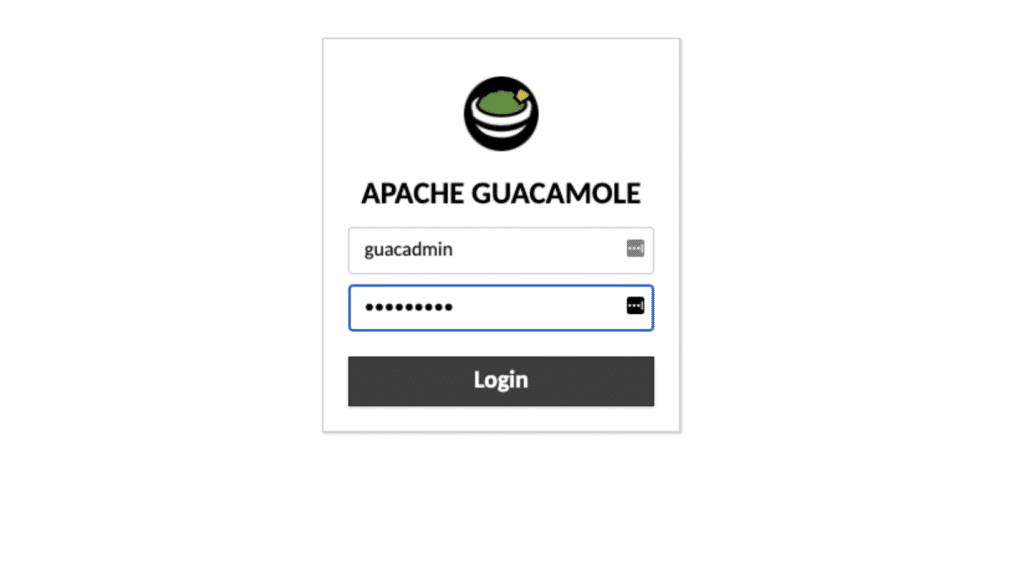
First login requires following credentials:
username: guacadmin
password: guacadmin
Then please follow https://peppe8o.com/apache-guacamole-raspberry-pi/ the guide for further configuration of users & machines. It is recommended to replace the admin account with more sophisticated login & password.
STEP4: INSTALL UBUNTU ADDITIONAL PACKAGES
Please install additional Ubuntu packages to ensure all the RDP libraries are up-to-date and reboot the machine:
root@ubuntu:~# apt-get update && apt full-upgrade -y
root@ubuntu:~# apt-get install libcairo2-dev libjpeg-turbo8-dev libpng-dev uuid-dev libtool-bin libpango1.0-dev libssh2-1-dev libtelnet-dev libvncserver-dev libpulse-dev libwebsockets-dev libssl-dev libvorbis-dev libwebp-dev freerdp2-dev ffmpeg libavcodec-dev libavformat-dev libavutil-dev libswscale-dev git autoconf automake pkg-config systemd
root@ubuntu:~# reboot
STEP4: CONFIGURING LAB MACHINES TO BE ACCESSED VIA RDP IN GUACAMOLE
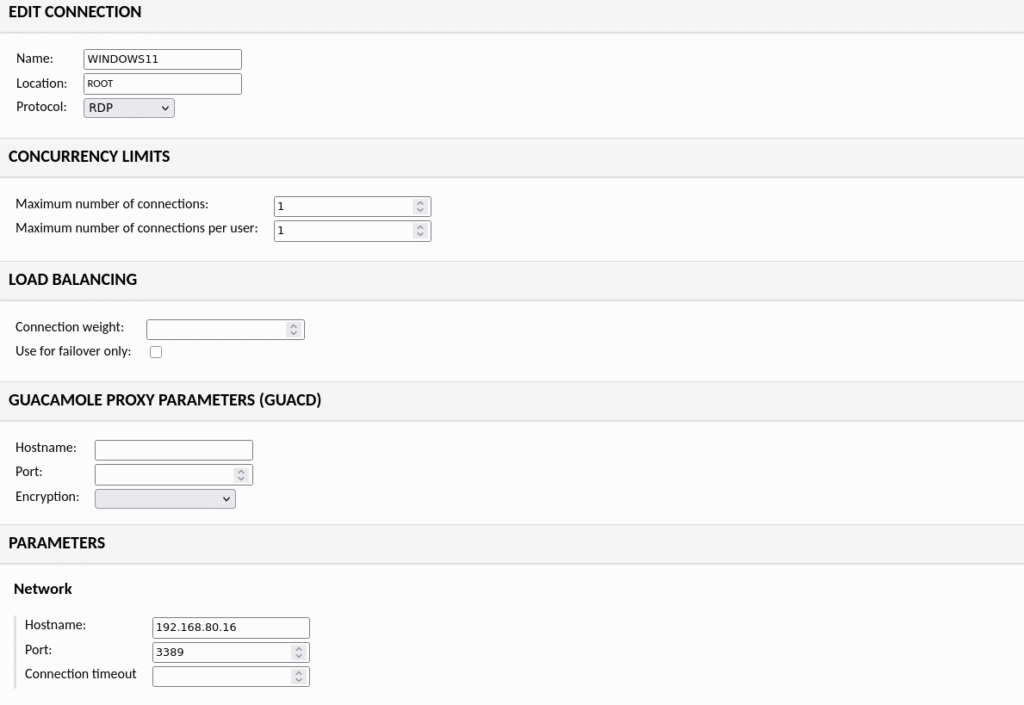
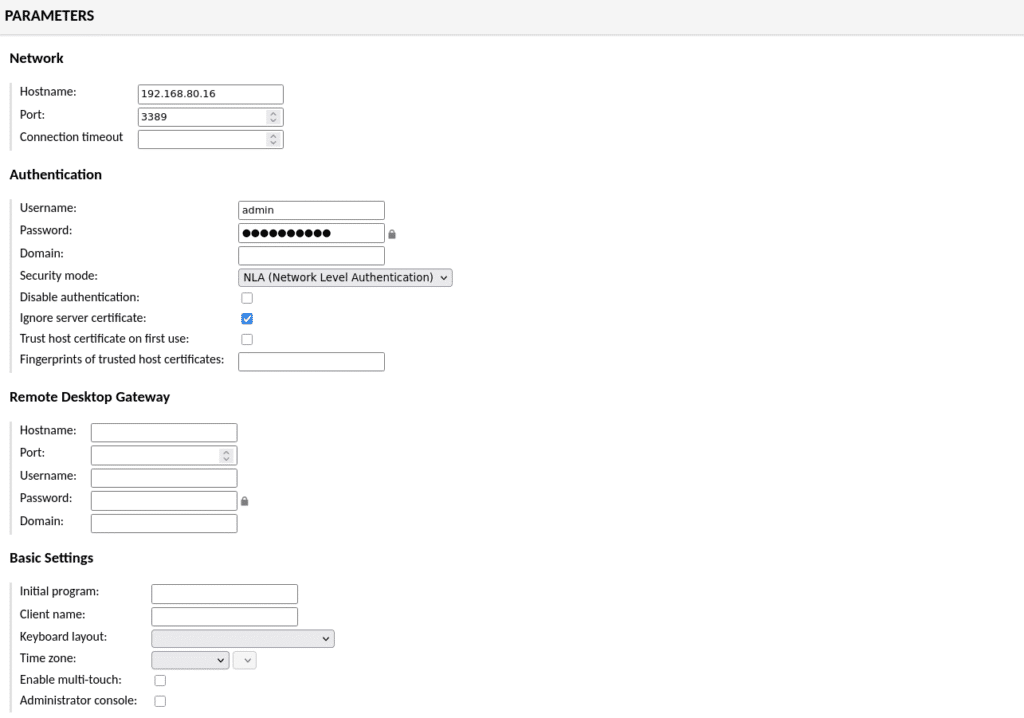
WINDOWS SERVER & WINDOWS 11
Enabling RDP in Windows is quite simple and does not require any additional tinkering. You may follow the Youtube video guide from Brandon Hopkins
Then create a connection profile in Guacamole:
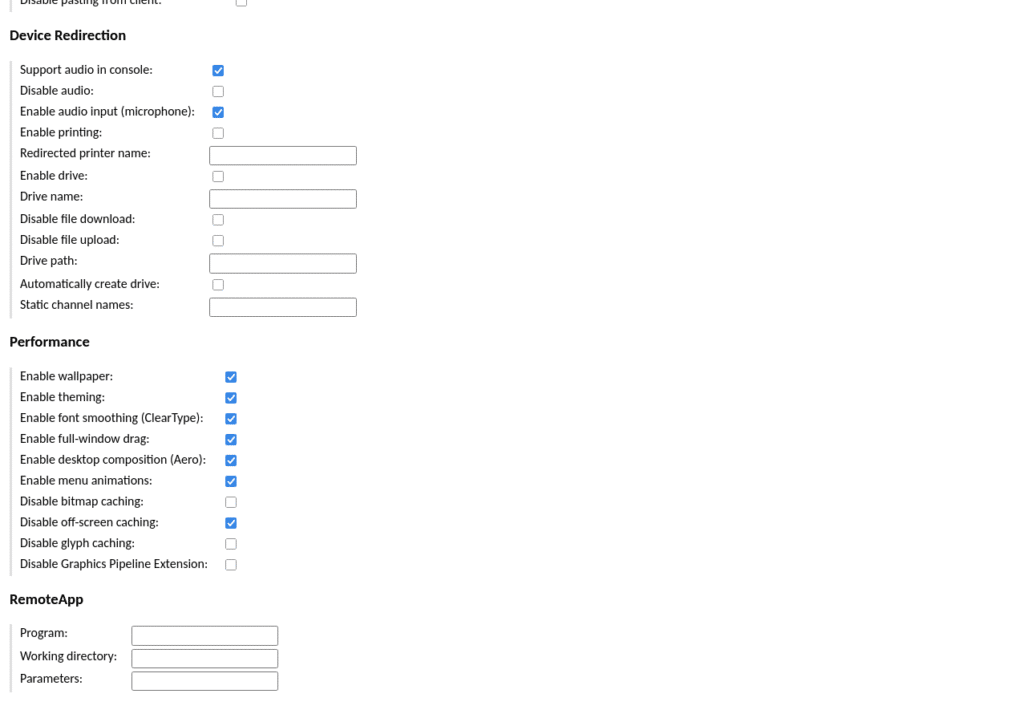
UBUNTU DESKTOP 25.04 GNOME (WAYLAND)
Before adding the connection in Guacamole, make sure your instance has a static IP and configure the RDP via command line. The connection will use your existing account name (ex. ubuntu1) and password that you can change by editing commands (RDPPASSWORD). Make sure that password does not contain special characters, since Guacamole tends to have an issue with this.
RDP_USER="${USER}"
RDP_PASS="RDPPASSWORD"
sudo -u gnome-remote-desktop winpr-makecert -silent -rdp -path ~gnome-remote-desktop rdp-tls
sudo grdctl --system rdp set-tls-key ~gnome-remote-desktop/rdp-tls.key
sudo grdctl --system rdp set-tls-cert ~gnome-remote-desktop/rdp-tls.crt
sudo grdctl --system rdp enable
sudo grdctl --system rdp set-credentials "${RDP_USER}" "${RDP_PASS}"
sudo systemctl --now enable gnome-remote-desktop.service
Please reboot the machine afterwards.
Once rebooted, please configure machine in Guacamole
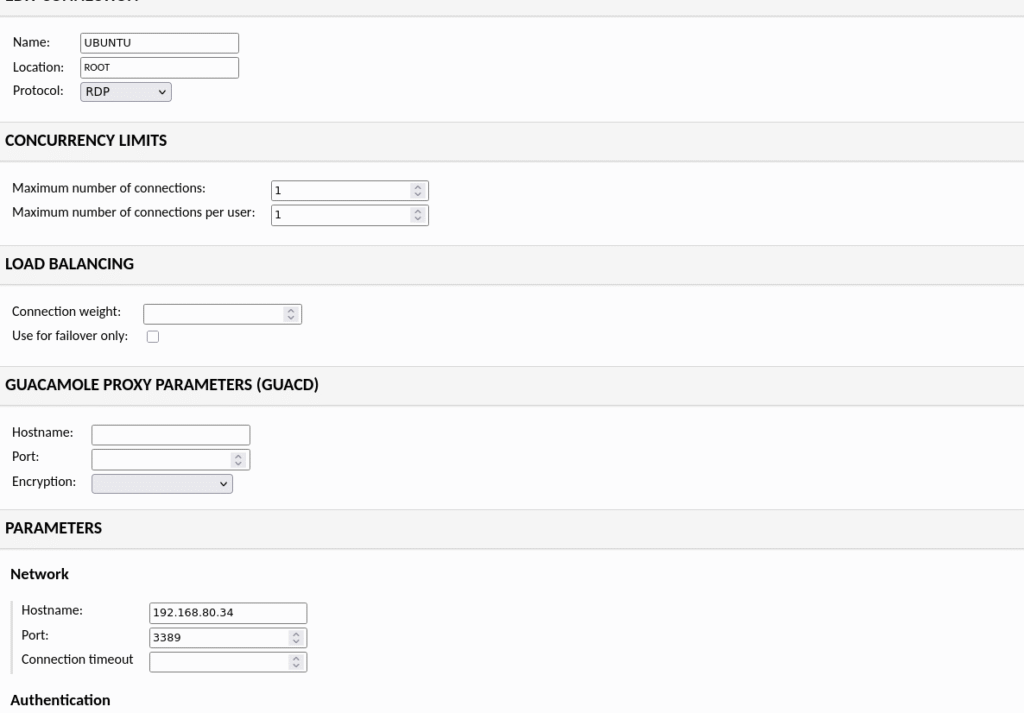
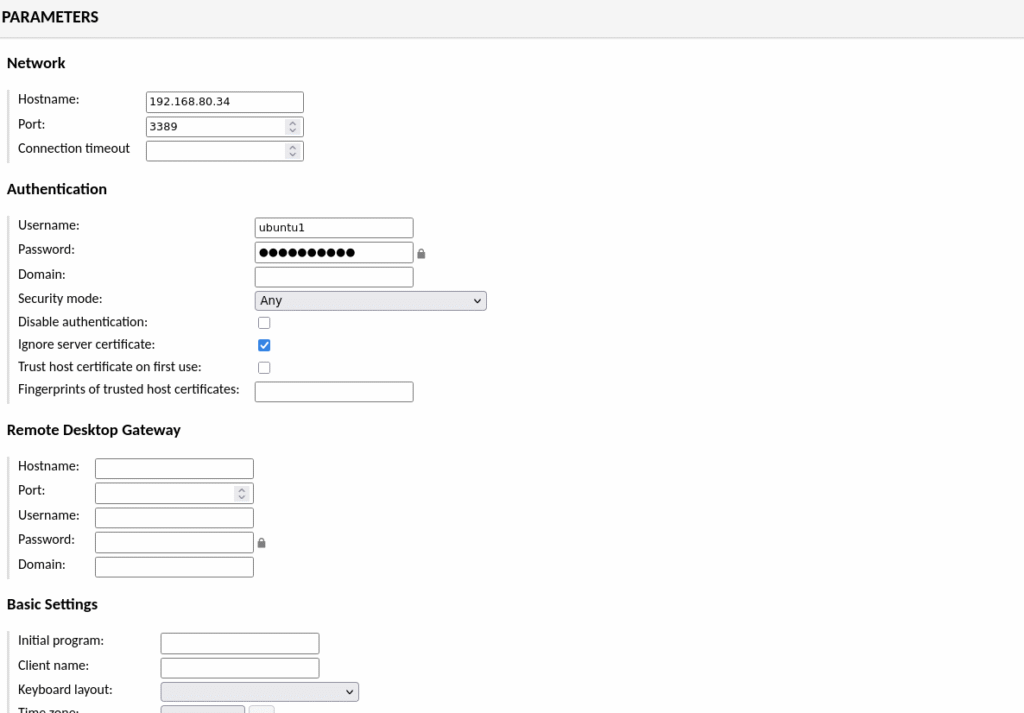
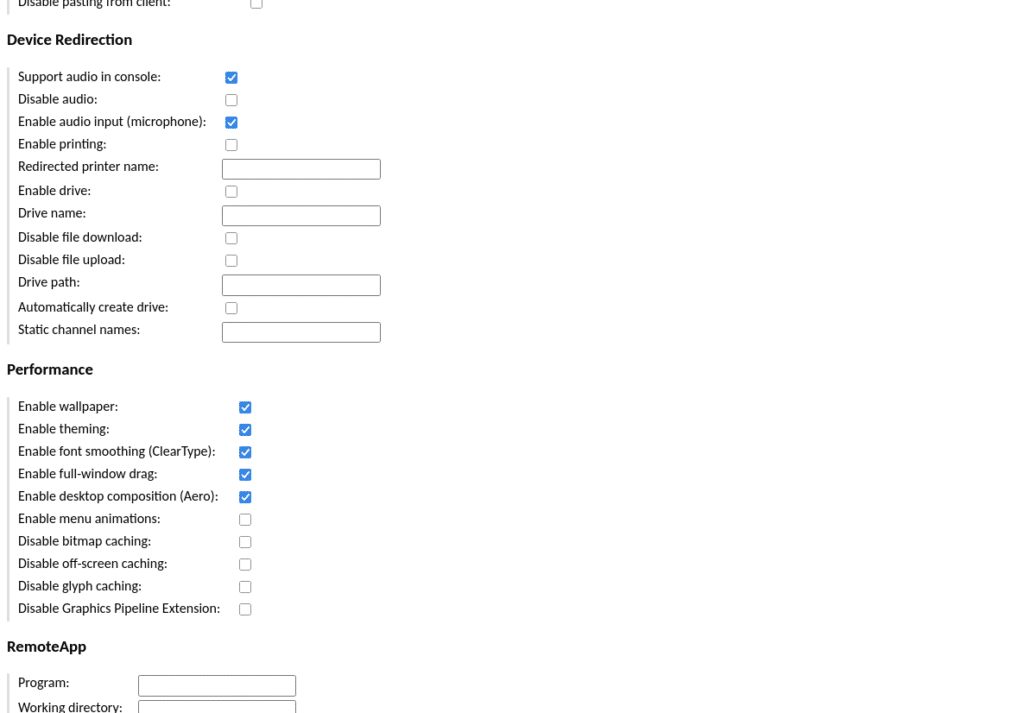
FEDORA 42 GNOME (WAYLAND)
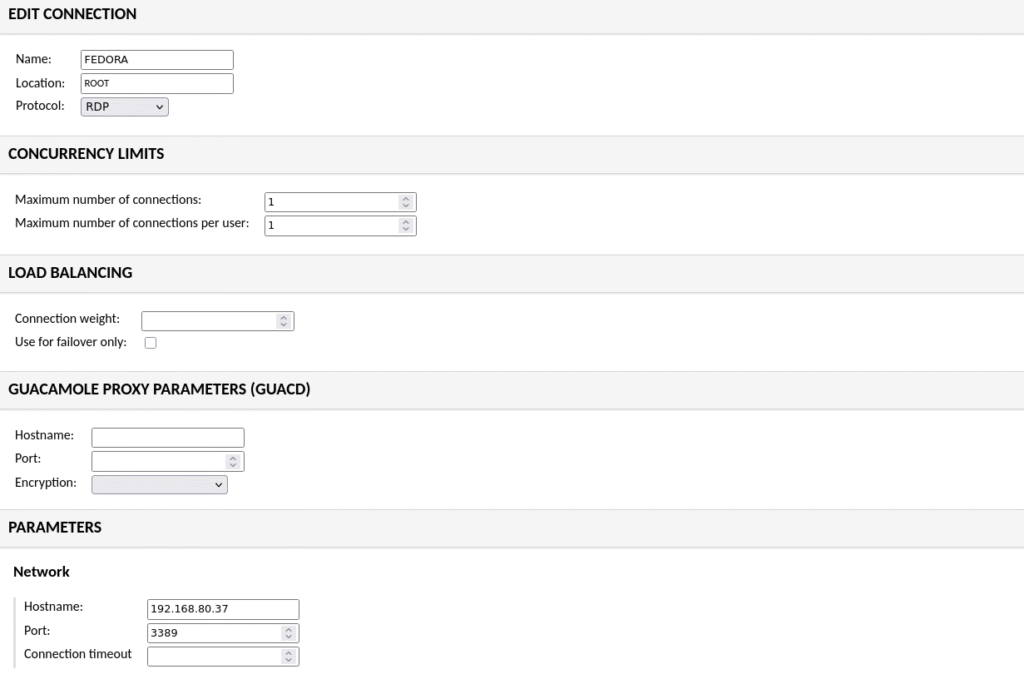
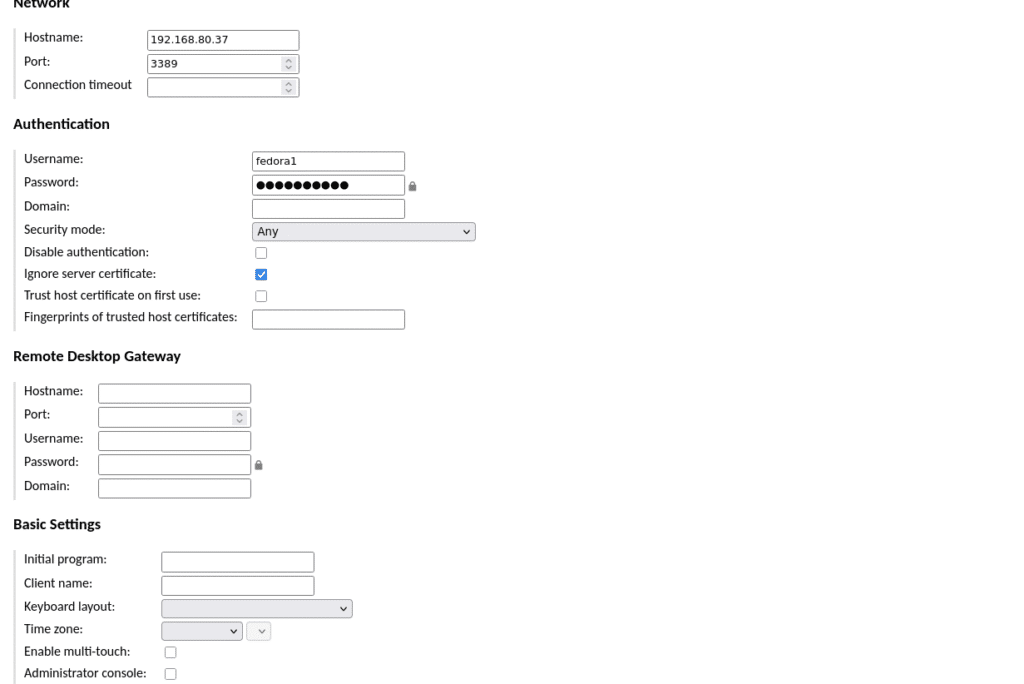
Before adding the connection in Guacamole, make sure your instance has a static IP and configure the RDP via command line. The connection will use your existing account name (ex. fedora1) and password that you can change by editing commands (RDPPASSWORD). Make sure that password does not contain special characters, since Guacamole tends to have an issue with this.
RDP_USER="${USER}"
RDP_PASS="RDPPASSWORD”
sudo dnf -y install gnome-remote-desktop freerdp
sudo -u gnome-remote-desktop winpr-makecert \
    -silent -rdp -path ~gnome-remote-desktop rdp-tls
sudo grdctl --system rdp enable
sudo grdctl --system rdp set-credentials "${RDP_USER}" "${RDP_PASS}"
sudo grdctl --system rdp set-tls-key ~gnome-remote-desktop/rdp-tls.key
sudo grdctl --system rdp set-tls-cert ~gnome-remote-desktop/rdp-tls.crt
sudo systemctl --now enable gnome-remote-desktop.service
sudo firewall-cmd --permanent --add-service=rdp
sudo firewall-cmd --reload
sudo dnf -y install gnome-connections
gnome-connections rdp://host
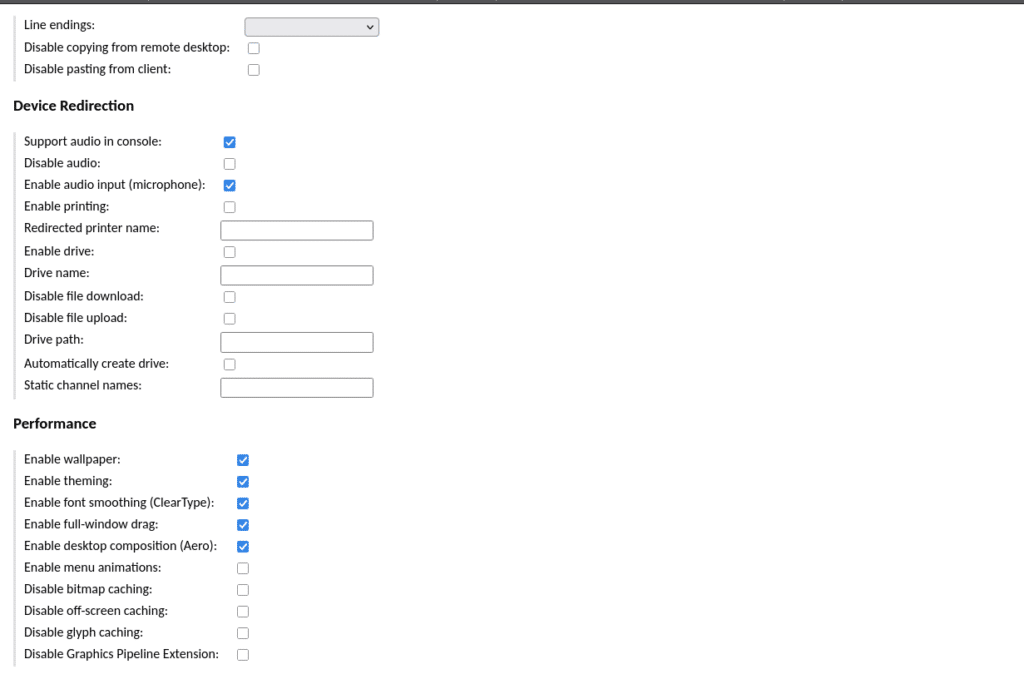
Please reboot the machine afterwards. Once rebooted, please configure it via Guacamole.
LINUX KDE SUPPORT
KDE RDP requires two environment lines to docker compose:
RDP_GFX_H264: “true”
RDP_GFX_YUV420: “true”
According to https://discuss.kde.org/t/krdp-and-apache-guacamole/18155/8
services:
  db:
    image: mariadb:latest
    restart: always
    environment:
      MYSQL_ROOT_PASSWORD: 'MySQLPasswordChangeMe'
      MYSQL_DATABASE: 'guacamole_db'
      MYSQL_USER: 'guacamole_user'
      MYSQL_PASSWORD: 'MySQLPasswordChangeMe'
    volumes:
      - './db-data:/var/lib/mysql'
      - './initdb.sql:/docker-entrypoint-initdb.d/initdb.sql'
  guacd:
    image: guacamole/guacd:latest
    restart: always
  guacamole:
    image: guacamole/guacamole:latest
    restart: always
    ports:
      - 8080:8080
    environment:
      GUACD_HOSTNAME: "guacd"
      MYSQL_HOSTNAME: "db"
      MYSQL_DATABASE: "guacamole_db"
      MYSQL_USER: "guacamole_user"
      MYSQL_PASSWORD: "MySQLPasswordChangeMe"
      TOTP_ENABLED: "false"   ### TRUE IF YOU WANT 2FA TOTP QR CODE
      WEBAPP_CONTEXT: "ROOT"  ### IF YOU WANT TO GET RID OF GUACAMOLE SUBURL
      RDP_GFX_YUV420: "true"
      RDP_GFX_H264: "true"
    depends_on:
      - db
      - guacd
volumes:
  db-data:
STEP5: OPTIONAL REMOTE ACCESS TO YOUR GUACAMOLE LAB
This step is optional. If you’d like to have access remotely, there’s two ways you can do that without making changes to any of the Firewall rules:
- Use an overlay VPN like Tailscale to access the Ubuntu Server via VPN connection (
- Use Cloudflare Tunnel to make your lab accessible via your own domain (
MRP)

Maciej Zytowiecki
Network security expert with a deep passion for wireless networks, networking and data security. When I'm not working, you'll find me diving into hobby projects, contributing to open-source initiatives, or enjoying hands-on experiments with cutting-edge tech. My goal is to bridge the gap between complex concepts and accessible knowledge, making the world of network security both intriguing and approachable for all.