Here is a guide on how to create an automation to handle network rack power loss when running on a UPS, in order to prevent data loss once the UPS power runs out.
In an area when there are power cuts very often, this prevents devices from wearing out and from additional data corruptions.
The guide shows a simple setup, but you can expand it by adding more devices (ex. NAS, other systems etc.)
ENVIRONMENT
- APC Back-UPS (1200VA/650W, 4x Schuko, USB, AVR)
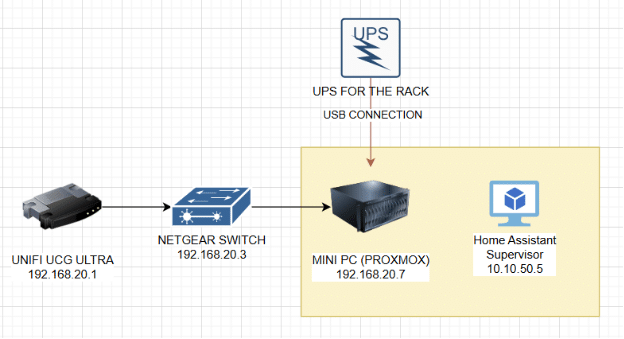
- UNIFI CLOUD GATEWAY ULTRA (UCG) / 192.168.20.1
- MINIPC RUNNING PROXMOX / 192.168.20.7
- HOME ASSISTANT INSTANCE / 10.10.50.5:8123 (running as VM on Proxmox)
- NETGEAR SWITCH 192.168.20.3 (this will not be powered off gracefully in order to draw the rest of the power from UPS)
1.PROXMOX/RASPBERRY PI to act as a NUT server
Based on: https://www.jeffgeerling.com/blog/2025/nut-on-my-pi-so-my-servers-dont-die
STEP1.1 Connect the APC UPS USB into the USB slot in your machine. In my example it’s connected directly to MINIPC running Proxmox.
Then install the nut-server on it
root@pve$ sudo -i
root@pve# apt-get update
root@pve# apt install -y nut
STEP1.2 Run nut-scanner to detect your UPS, as example
root@pve#  nut-scanner -U
Scanning USB bus.
[nutdev1]
    driver = "nutdrv_qx"
    port = "auto"
    vendorid = "0665"
    productid = "5161"
    product = "UPS"
    bus = "001"
STEP1.3 Please edit the ups.conf and add the device into configuration at the end of file as example:
root@pve# nano /etc/nut/ups.conf
[server-room-rack]
    driver = nutdrv_qx
    product = UPS
    desc = "Server Room Lowell Power Rack UPS"
    port = auto
    vendorid = 0665
    productid = 5161
    bus = 001
Save & close it
STEP1.4 Open up the /etc/nut/upsd.conf and config the listening port at the end of the file and Save
root@pve# nano /etc/nut/upsd.conf
LISTEN 0.0.0.0 3493
STEP1.5 Create an administrator user and observer account & save
root@pve# nano /etc/nut/upsd.users
[admin]
    password = ADMIN_PASSWORD_HERE
    actions = set
    actions = fsd
    instcmds = all
    upsmon master

[observer]
    password = OBSERVER_PASSWORD_HERE
    upsmon slave
STEP1.6 Configure the UPS monitor on the NUT Pi by editing upsmon.conf and adding the lines, then save
root@pve# nano /etc/nut/upsmon.conf
# Make sure you use your actual admin password...
MONITOR server-room-rack@localhost 1 admin ADMIN_PASSWORD_HERE master
# You might also want to configure FINALDELAY and set it to a period long enough
# for your servers to all shut down, prior to the primary node shutting down and
# triggering the UPS to switch off its load, e.g. for 3 minutes:
FINALDELAY 180
Now change the MODE to netserver
root@pve# nano /etc/nut/nut.conf
MODE=netserver
STEP1.7 Restart the NUT server and make sure it is enabled at system boot:
root@pve# systemctl restart nut-server
root@pve# systemctl enable nut-server
root@pve#  systemctl restart nut-monitor
root@pve# systemctl enable nut-monitor
STEP1.8 Check if you can see all your UPS details with upsc
root@pve# upsc server-room-rack
Init SSL without certificate database
battery.charge: 24
battery.energysave: no
battery.packs: 1
battery.protection: yes
battery.runtime: 0
battery.voltage: 50.60
battery.voltage.nominal: 48.0
device.model: LILVX2K0
device.type: ups
driver.name: nutdrv_qx
2. NUT SERVER SCRIPT TO TURN OFF THE UNIFI GATEWAY WHEN THERE IS POWER LOSS
Based on: Ubiquiti UniFi UNAS/UNVR Graceful Shutdown Using NUT (Network UPS Tools/UPS/SSH – https://www.youtube.com/watch?v=op4TjiT4zl8
Please watch it to understand the script execution.
STEP2.1 Install additional packages:
root@pve$ sudo -i
root@pve# apt-get update
root@pve# apt install -y sshpass
STEP2.2 Open the NUT directory
root@pve# cd /etc/nut
root@pve# ls -lh
Now let’s modify the lines, as per guidelines below:
root@pve# nano /etc/nut/upsmon.conf
[…] UNCOMMENT AT THE TOP
RUN_AS_USER root
[…] UNCOMMENT & MODIFY THE LINE
SHUTDOWNCMD “nohup /sbin/poweroff >/dev/null 2>&1 &”
[…] UNCOMMENT & MODIFY THE LINE
NOTIFYCMD /usr/sbin/upssched
[…] UNCOMMENT & MODIFY THE LINE
POLLFREQ 5
[…] UNCOMMENT & MODIFY THE LINE
POLLFREQALERT 2
[…] UNCOMMENT & MODIFY THE LINE
NOTIFYFLAG ONLINE       SYSLOG+WALL+EXEC
NOTIFYFLAG ONBATT       SYSLOG+WALL+EXEC
Save & Apply
STEP2.3 Restart service & check status if all are ACTIVE
root@pve# systemctl restart nut-server
root@pve# systemctl status nut-server
root@pve# systemctl status nut-monitor
STEP2.4 Let’s create a schedule
root@pve# nano /etc/nut/upssched,conf
[…] UNCOMMENT & MODIFY
CMDSCRIPT /root/nut/nutsched.sh
[…] UNCOMMENT & MODIFY
PIPEFN /run/nut/upssched.pipe
[…] UNCOMMENT & MODIFY
LOCKFN /run/nut/upssched.lock
[…] ADD AT THE END OF THE FILE  (2100 are seconds left before battery dies, so the timer will start over here, customize according to your UPS)
AT ONBATT * EXECUTE immediately_shutdown
AT ONBATT * START-TIMER after_upsonbatt 2100
AT ONLINE * CANCEL-TIMER after_upsonbatt
Save & Apply
STEP2.5 Let’s create a schedule script
root@pve$ sudo -i
root@pve# cd /root
root@pve# pwd
root@pve# mkdir nut
root@pve# cd nut
root@pve# pwd
root@pve# nano nutsched.sh
case $1 in              # start case statement, checking first argument
    immediately_shutdown)   # case 1
        /root/nut/shutdown_1.sh
        ;;                 # end of this case
    after_upsonbatt)        # case 2
        /root/nut/shutdown_2.sh
        ;;                 # end of this case
esac                     # close case statement


root@pve# nano shutdown_1.sh
#notused

root@pve# nano shutdown_2.sh
##### SHUTDOWN UNIFI IF TRIGGERED ##########
sshpass -p 'PasswordSSHtoUnifiCloudGateway' ssh -o StrictHostKeyChecking=no [email protected] 'poweroff -d 30'

root@pve# ls -lh
root@pve# chmod 700 *
STEP2.6 Restart services
root@pve# systemctl restart nut-server
root@pve# systemctl status nut-server
root@pve# systemctl status nut-monitor
STEP2.8 Cut off power for couple of minutes and check if triggered. You may check on
root@pve# journalctl -f
3. CONNECT THE UPS SERVER TO HOME ASSISTANT FOR TRACKING
STEP3.1 Please open HOME ASSISTANT and go to Settings > Devices & services and Add device Network UPS Tools (NUT)
- Host: 192.168.20.7
- Port: 3493
- Username: observer
- Password: OBSERVER_PASSWORD_HERE
Let’s name it UPSRACK
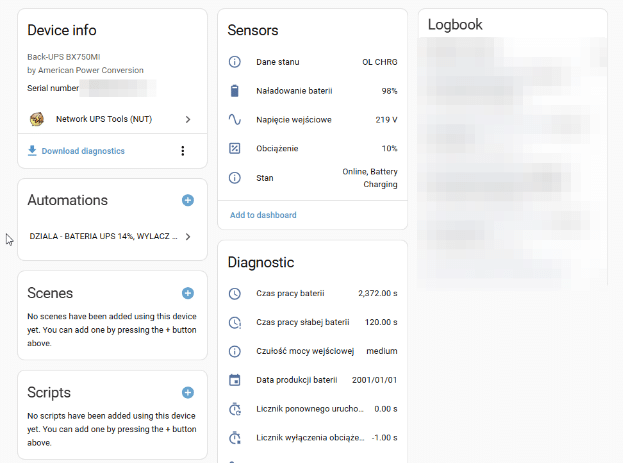
STEP3.2 You shall see the states of the battery
STEP3.3 Install card https://github.com/kalkih/mini-graph-card
STEP3.4 Open the dashboard and create a custom card by choosing manual then paste the code aligning the sensors:
type: vertical-stack
cards:
  - type: vertical-stack
    cards:
      - type: history-graph
        entities:
          - name: Status
            entity: sensor.upsrack_stan
        hours_to_show: 4
        title: UPS BATTERY FOR NETWORK
      - type: gauge
        entity: sensor.upsrack_naladowanie_baterii
        name: Battery Charge
        severity:
          green: 50
          yellow: 20
          red: 0
  - type: entities
    entities:
      - entity: sensor.upsrack_dane_stanu
        name: Status data
      - entity: sensor.upsrack_stan
        name: Status
      - entity: sensor.upsrack_naladowanie_baterii
        name: Battery charge
      - entity: sensor.upsrack_obciazenie
        name: Load
      - entity: sensor.server_room_rack_czas_pracy_baterii
        name: Battery life
      - entity: sensor.server_room_rack_napiecie_baterii
        name: Battery voltage
      - entity: sensor.server_room_rack_nominalna_moc_rzeczywista
        name: Nominal actual power
      - entity: sensor.server_room_rack_nominalne_napiecie_baterii
        name:Nominal battery voltage
      - entity: sensor.server_room_rack_opoznienie_wylaczenia_ups
        name: UPS shutdown delay
It shall look like this after save:
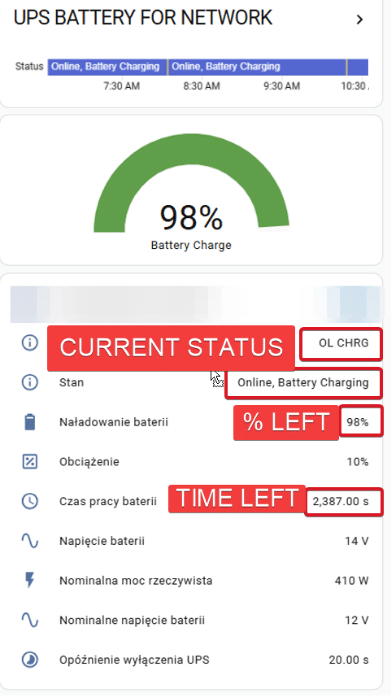
IMPORTANT SENSOR INFORMATION
NUT SERVER INFORMATION:
STATUS DATA
sensor.upsrack_dane_stanu
WHEN CHARGING: OL CHRG
WHEN DISCHARGING: OB DISCHRG
STATUS
sensor.upsrack_stan
WHEN CHARGING: Online, Battery Charging
WHEN DISCHARGING: On Battery, Battery Discharging
BATTERY CHARGE (!) # THIS CAN BE USED FOR AUTOMATION
sensor.upsrack_naladowanie_baterii
WHEN CHARGING: 100%
WHEN DISCHARGING: 99% and below
TIME LEFT ON UPS WHEN THERE IS POWER LOSS
sensor.server_room_rack_czas_pracy_baterii
THIS WILL SHOW YOU HOW MUCH TIME YOU HAVE LEFT IN SECONDS, THIS VALUE IS ONLY INFORMATION AND REAL TIME COULD BE LESS THAN THAT
4. CREATE A SSH KEYPAIR BETWEEN HOME ASSISTANT AND UNIFI+PROXMOX
STEP4.1 Make sure you have SSH Add-on installed and open ssh from the left menu. Or use normal SSH towards Home Assistant. Then follow prompts to create RSA key
$ mkdir /config/ssh_keys
$ ssh-keygen -t rsa -f /config/ssh_keys/id_rsa_homeassistant
STEP4.2 Verify if the key has been created
$ cd /config/ssh_keys
$ ls -lh
STEP4.3 Now copy the RSA key to your UNIFI & PROXMOX
## UNIFI UCG
$ ssh-copy-id -i /config/ssh_keys/id_rsa_homeassistant.pub [email protected]
## PROXMOX
$ ssh-copy-id -i /config/ssh_keys/id_rsa_homeassistant.pub [email protected]
STEP4.4 Check if the connection is using RSA keypair and working
$ ssh -i /config/ssh_keys/id_rsa_homeassistant [email protected]
$ exit
$ ssh -i /config/ssh_keys/id_rsa_homeassistant [email protected]
$ exit
5. CREATE SWITCHES FOR SHUTTING DOWN UNIFI & PROXMOX
STEP5.1 Make sure you have HASSOS File Editor add-on installed as per https://www.youtube.com/watch?v=ncKWaLpJ1DQ&t=1s
STEP5.2 Open File Editor from the menu and look for configuration.yaml then add these lines
!! UPDATED 27.11.2025
########### SWITCH SHUTDOWN GRACEFULLY ######

command_line:

  - switch:
      name: "Shutdown UNIFI"
      unique_id: switch_unifi_shutdown
      command_timeout: 20
      command_on: >
        /usr/bin/ssh -i /config/ssh_keys/id_rsa_homeassistant
        -o BatchMode=yes -o IdentitiesOnly=yes
        -o PreferredAuthentications=publickey -o PasswordAuthentication=no
        -o ConnectTimeout=5
        -o UserKnownHostsFile=/config/ssh_keys/known_hosts
        -o StrictHostKeyChecking=yes
        [email protected] "poweroff -d 30"
      command_off: >
        true


  - switch:
      name: "Shutdown PVE"
      unique_id: switch_pve_shutdown
      command_timeout: 20
      command_on: >
        /usr/bin/ssh -i /config/ssh_keys/id_rsa_homeassistant
        -o BatchMode=yes -o IdentitiesOnly=yes
        -o PreferredAuthentications=publickey -o PasswordAuthentication=no
        -o ConnectTimeout=5
        -o UserKnownHostsFile=/config/ssh_keys/known_hosts
        -o StrictHostKeyChecking=yes
        [email protected] "nohup /sbin/poweroff >/dev/null 2>&1 &"
      command_off: >
        true
Save & Restart Home Assistant
STEP5.3 Under Home Assistant > Settings > Devices > integration > Command Line you shall see 2 switches created
- Shutdown PVE
- Shutdown UNIFI
6. CREATE AN ADDITIONAL AUTOMATION WHEN THERE IS A POWER LOSS
STEP6.1 Make sure which entity name sensor shows the percentage of UPS battery, in my case as previously mentioned it is
BATTERY CHARGE (!) # THIS CAN BE USED FOR AUTOMATION
sensor.upsrack_naladowanie_baterii
WHEN CHARGING: 100%
WHEN DISCHARGING: 99% and below
STEP6.2 Create automation via Home Assistant > Automations > Create
When:
- Entity: sensor.upsrack_naladowanie_baterii
- Lower limit: leave empty
- Upper limit: 14 (triggers when battery drops below 14%)
Then do:
- Switch ON
- Entity: Shutdown PVE, Shutdown UNIFI
NAME: UPS graceful shutdown
YAML AUTOMATION & MORE PRECISE
alias: WHEN UPS GOES TO BATTERY - SHUTDOWN GRACEFULLY
description: ""
triggers:
  - trigger: numeric_state
    entity_id: sensor.upsrack_naladowanie_baterii
    below: 30
    for:
      hours: 0
      minutes: 2
      seconds: 0

conditions:
  - condition: state
    entity_id: sensor.upsrack_stan
    state: "On Battery, Battery Discharging"

actions:
  - action: switch.turn_on
    target:
      entity_id:
        - switch.shutdown_unifi
        - switch.shutdown_pve
mode: single
Mark automation as enabled & visible
In my case, if the UPS charge goes below 14% it runs script for UNIFI & PROXMOX shutdown. I have left around 10% which would be discharged to 0% by the switch, so the rack will have no power (this is important part if you want to get it back on when power goes back) Therefore when the power comes back, everything should turn on normally – UPS charges, UNIFI starts up, PROXMOX starts up (since there is BIOS set to AC power ON)
7. TEST AUTOMATION
Each environment is different, so after setting this up, please cut off the power and check whether your devices are switched off gracefully before the power is lost on UPS to prevent them from getting disk corruption.
Test and adjust some parameters according to your UPS and power consumption.
8. OPTIONAL: ADD THE TASMOTA PLUG FOR THE RACK POWER IN
Network equipment in my case does not need to run at night, so I’ve created a schedule on Tasmota Plug to automatically turn off at 11 PM at night and turn on at 6 AM in the morning.
The automation set earlier will treat it as a normal power cut off and act accordingly.

Maciej Zytowiecki
Network security expert with a deep passion for wireless networks, networking and data security. When I'm not working, you'll find me diving into hobby projects, contributing to open-source initiatives, or enjoying hands-on experiments with cutting-edge tech. My goal is to bridge the gap between complex concepts and accessible knowledge, making the world of network security both intriguing and approachable for all.